SETUP AN ARCHIVE FOR SHARED MAILBOX
METHOD 1: USING PST FILES
This method only allows for 1 person to access the archive at one time, the .pst file can be stored in a shared location, attached to Outlook while archives are checked, then disconnected for the next person to use.
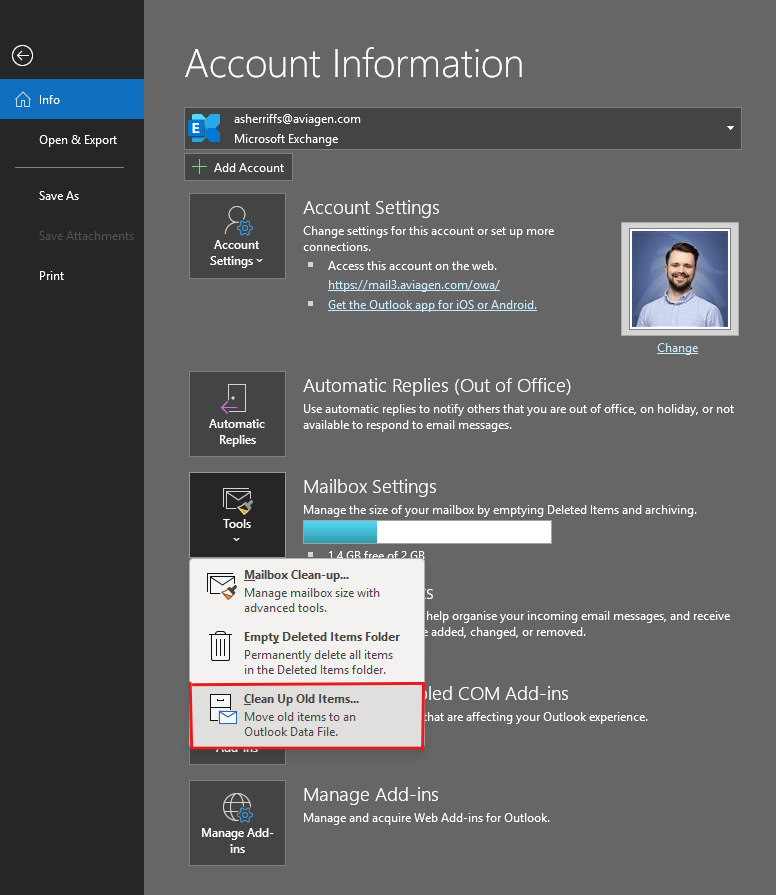
1 – Export the archive to .pst by going to File > Tools > Clean Up Old Items…
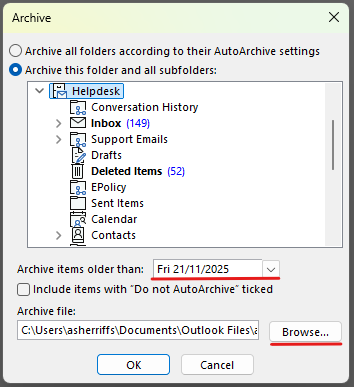
2 – Choose the folders you would like to archive or the top level if you would like to archive the whole mailbox and its structure. Select the date of which you would like to archive from (all items before this date), you can then name the archive and choose where this stored by choosing browse:
3 – Once the archive process is complete, you will see this in your list of ‘data files’, you can manage these by going to File > Account Settings > Account Settings > Data Files tab:
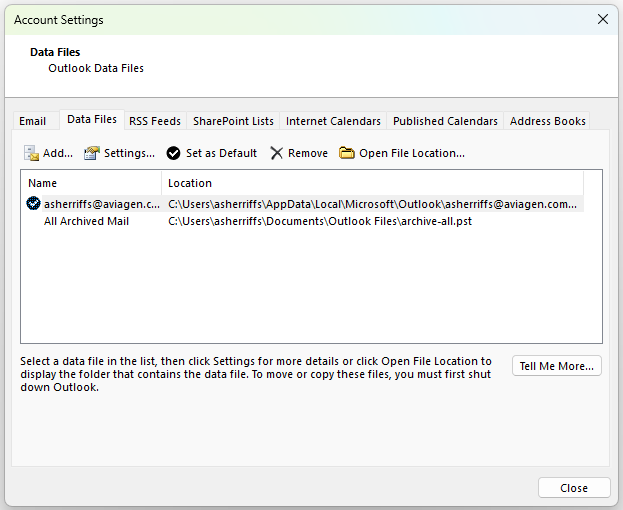
You can Add and Remove .pst when checking archives, note that it can only be added to 1 users Outlook at a time.
METHOD 2: USING EML FILES
This method allows for multiple users to access emails, however requires more management and cannot be searched in the same way as Outlook.
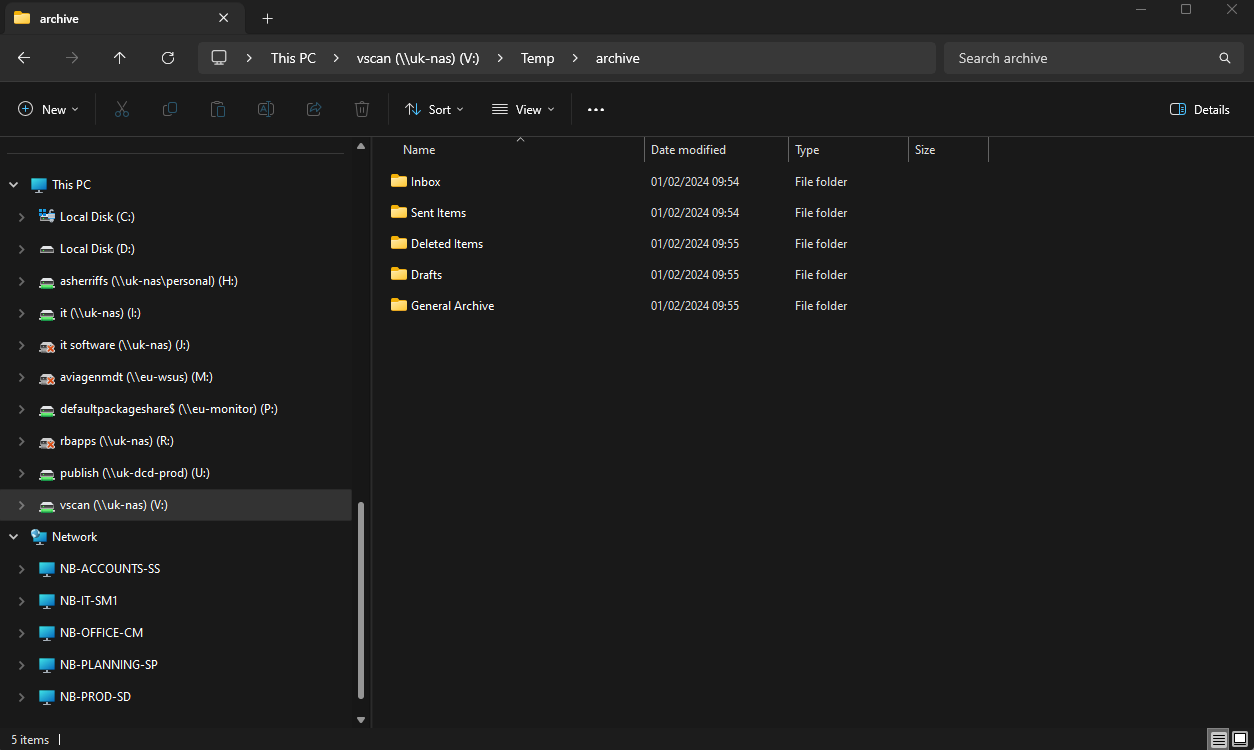
1 – Create a folder structure in a shared network location that matches the mailbox folders in Outlook, this can be only the folders that need archived (DO NOT use location shown below):
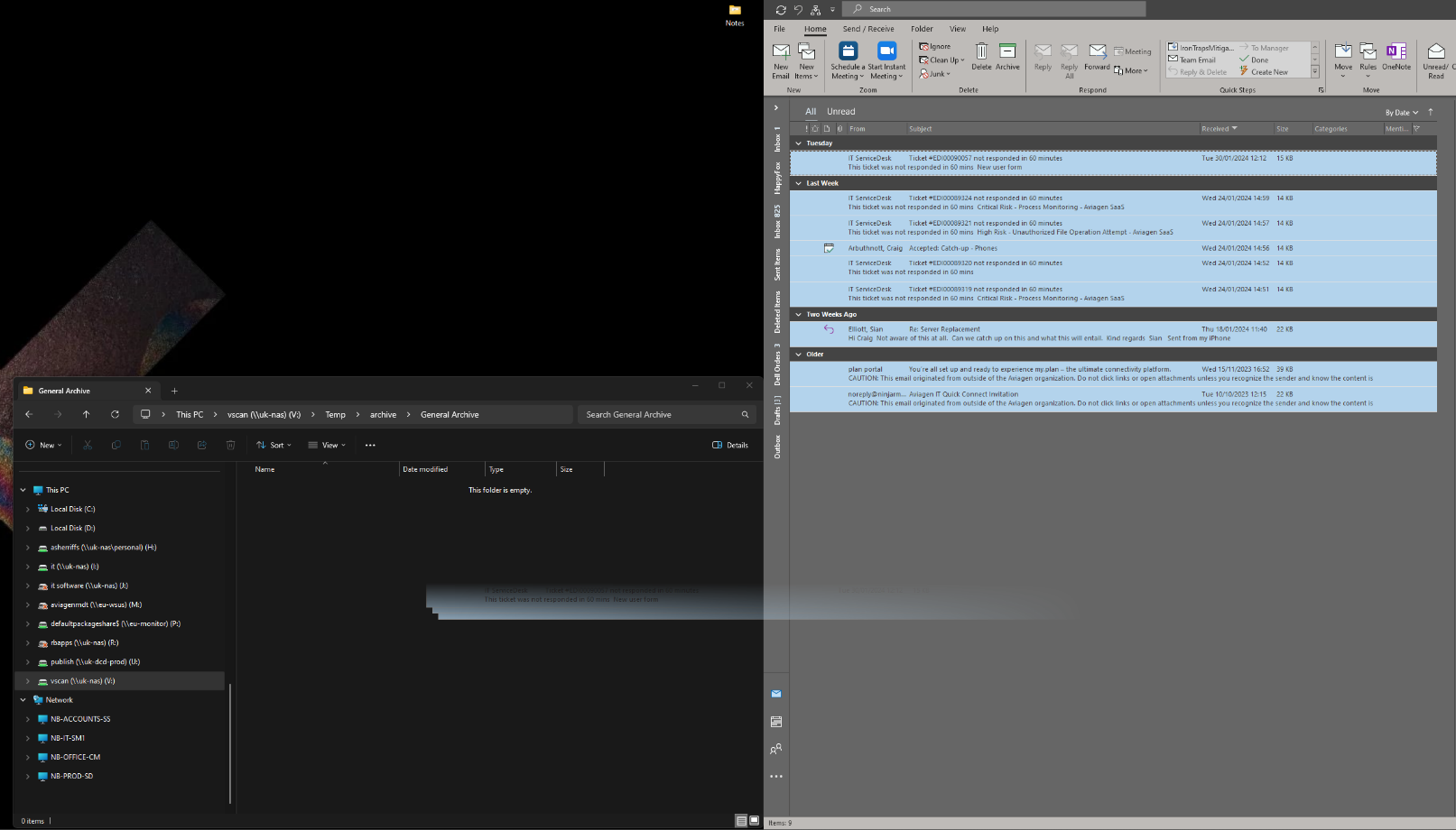
2 – Select all mail items from Outlook that need archived, then drag-and-drop the items into relevant folder, this can be as little or as many as you see fit (you can use CTRL+A to select all items in a folder):
3 – Once the mail items show in the folder, they can be deleted from the mailbox in Outlook:
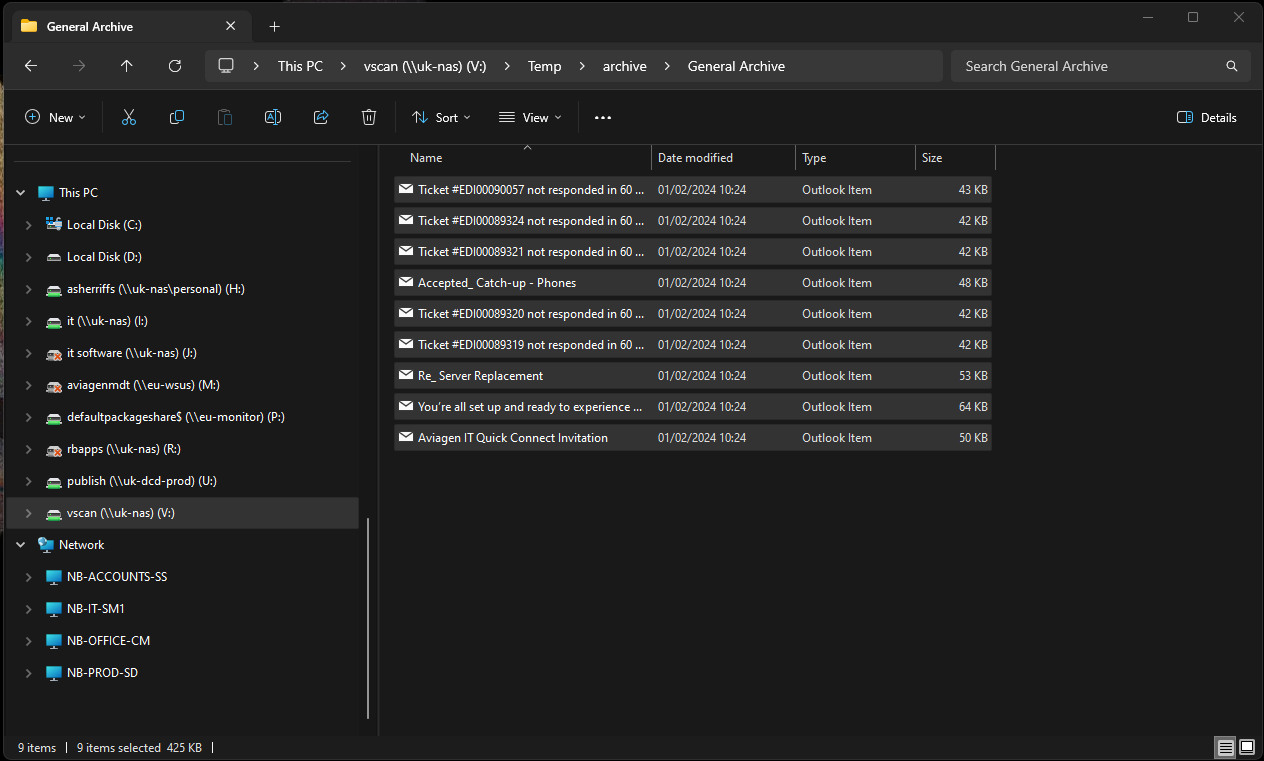
NOTE – You can amend the names of the files to index in a search friendly manner, this will not change the content of the mail items.
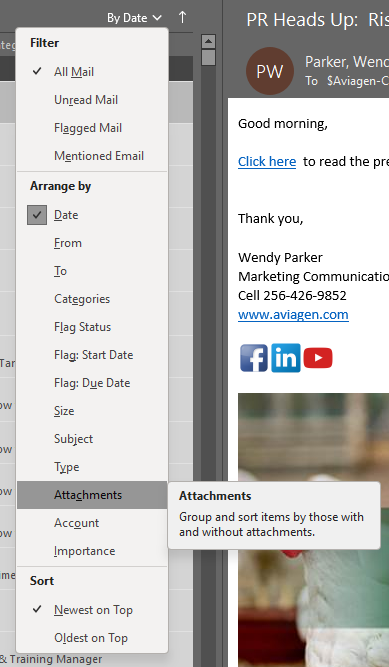
PS - To make sure you are saving space efficiently; you can filter by attachment and move items that are large in size: