


Microsoft Multi-factor Authentication (MFA) Setup Guide
Use Microsoft Authenticator to set up six-digit one-time passcodes (OTP) for your Aviagen work account with Microsoft MFA.
Before you begin
- Have your mobile phone ready with Microsoft Authenticator (see step 1B-C for Google Authenticator) installed from Google Play or the Apple App Store.
- Use your Aviagen work account to start enrolment, you will generate your QR code during Step 2.
1. Start MFA enrolment (On Computer)
Click this link to the Microsoft Security info page.
Sign in with your Aviagen work account if prompted, then follow the steps below on-screen.
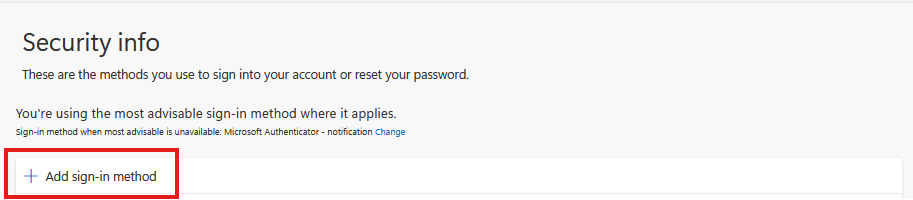
A. Click Add sign-in method near the top of the Security info page.
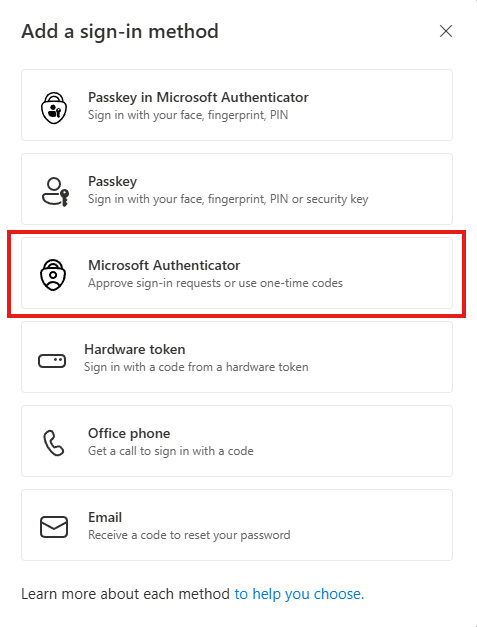
B. Choose the option Microsoft Authenticator.
If you use Google Authenticator, see screenshot in Step C to 'Setup a different authentication app'
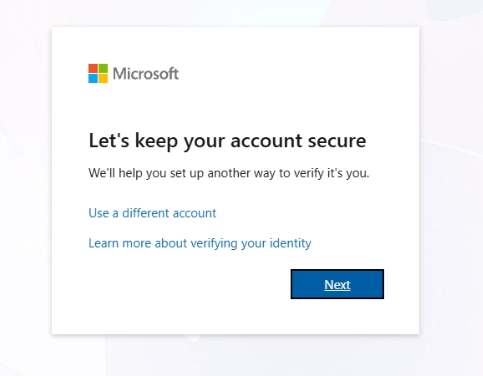
If the "Let's keep your account secure" screen appears, select Next.
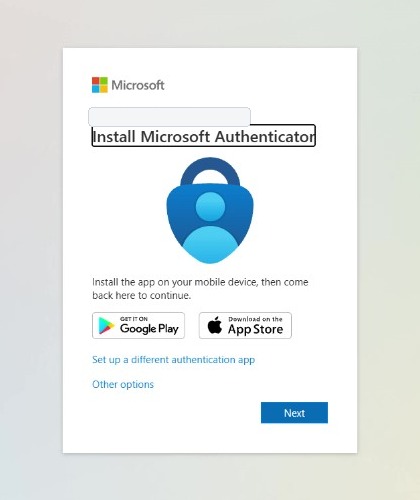
C. It will then prompt you to install Microsoft Authenticator, choose Next and continue.
Option for Google Authenticator shown 'Setup a different authentication app'
D. Select Next to display your enrolment QR code, which you will scan using the Authenticator app.
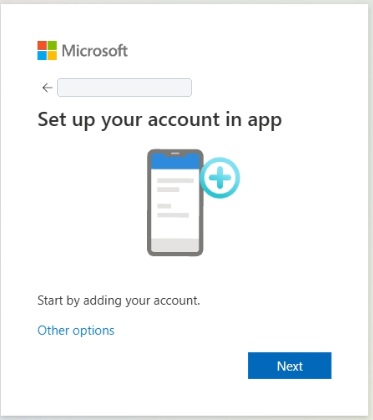
3. Scan the QR code with Microsoft Authenticator (On Mobile)
In Microsoft Authenticator, tap + (add a code), then choose Scan a QR code. Use your phone to scan the QR code displayed in your browser. Your work account will appear in Microsoft Authenticator with a six-digit code. Return to your browser and select Next.
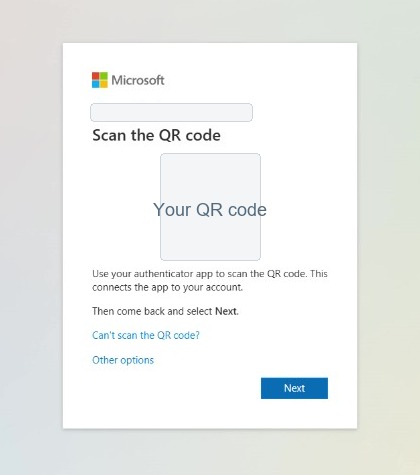
Scan the unique QR code displayed for your account. The example code is hidden.
5. Verify the one-time passcode (On Computer)
Microsoft Authenticator displays a current six-digit code for your Aviagen work account. Enter that code in the browser and select Next. Use the current code before it changes.
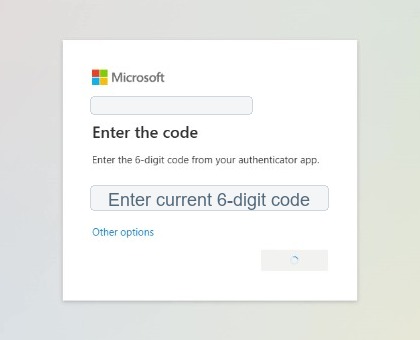
Enter the current six-digit code from Microsoft Authenticator.
6. You will use the code labelled 'Microsoft' whenever you use SSO (Single Sign On) and it prompts you to enter a code.
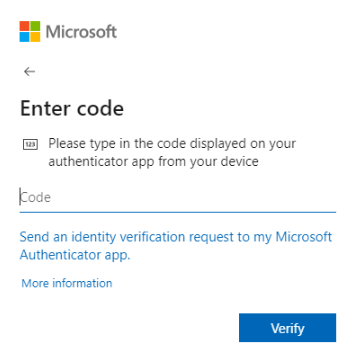
Enrolment check
You are all set when Microsoft confirms the method was added and the authenticator or software OATH method appears on your Security info page. You can now use the current six-digit code for your work account in Microsoft Authenticator when a sign-in asks for an OTP.
Need help?
Contact IT if you cannot scan the QR code, the app does not show a code, or the setup screens differ from this guide.
[email protected] / +44 (0) 131 376 5555


